Fiber Registry
Fiber Registry on video

See the app in action

Recordings of the app on the technician's phone: this is how each job is recorded, step by step.

From the record to the invoice

From the record to the invoice

Fiber Registry from start to finish in one minute: the technician records the job on the phone, with its photos, GPS and metres; in the panel every point is tracked with its tasks and status, with the project summary and map always up to date; the photos are filed in their folder, ready to hand over; the certificate is built from what was recorded, on the customer's template, and the invoice from what was certified, with payment under control. The captions are in Spanish.

Watch the video
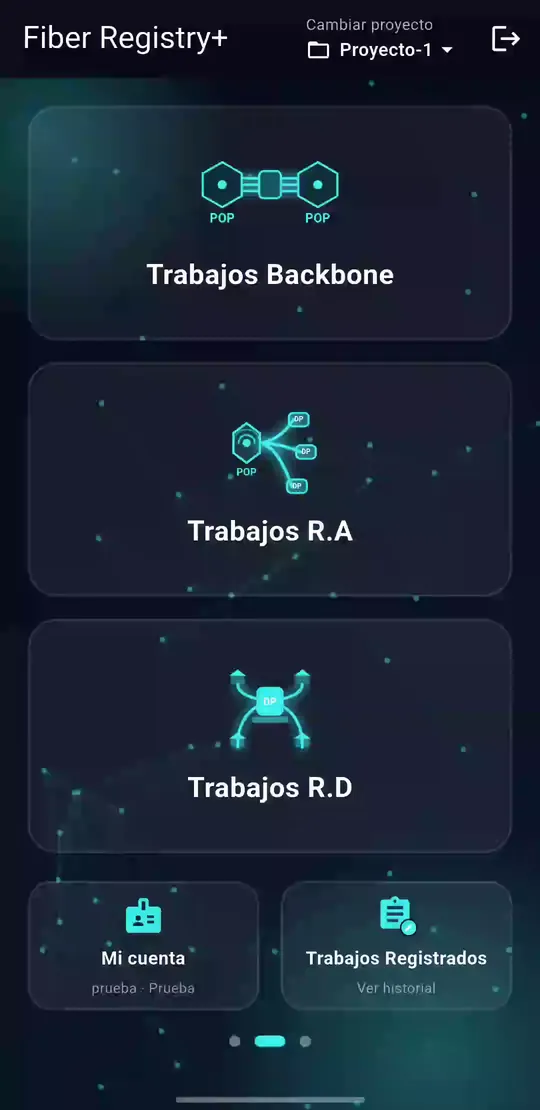
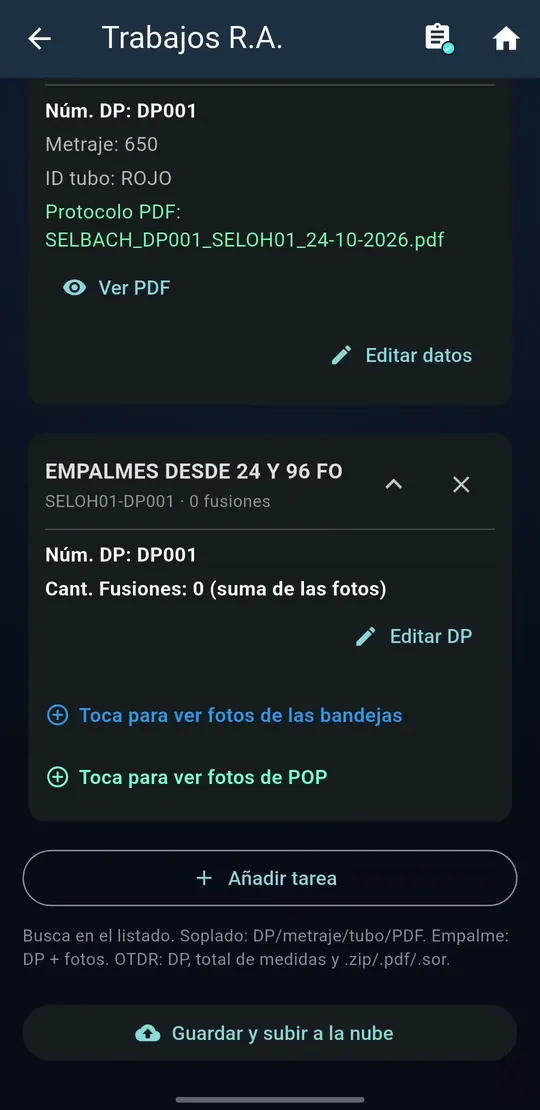
Recording Backbone jobs

Recording Backbone jobs

A Backbone job from start to finish: the technician adds the POP, picks the cable blowing task and enters the destination POP, the metres and the duct. They share the blowing protocol PDF and the tray photos from other apps (the camera reads the code on each tray) and upload the OTDR files. At the end, everything is in the summary and on the map.

Watch the video
Recording tasks at a POP

Recording tasks at a POP

An FN POP from start to finish: the technician picks the town and the POP and adds the tasks for each DP: cable blowing with its metres, duct and PDF protocol, and splicing with one photo per tray and its splices. Once saved it uploads on its own and shows up straight away in the summary, in the recorded jobs and on the map.

Watch the video
Recording tasks in the distribution network

Recording tasks in the distribution network

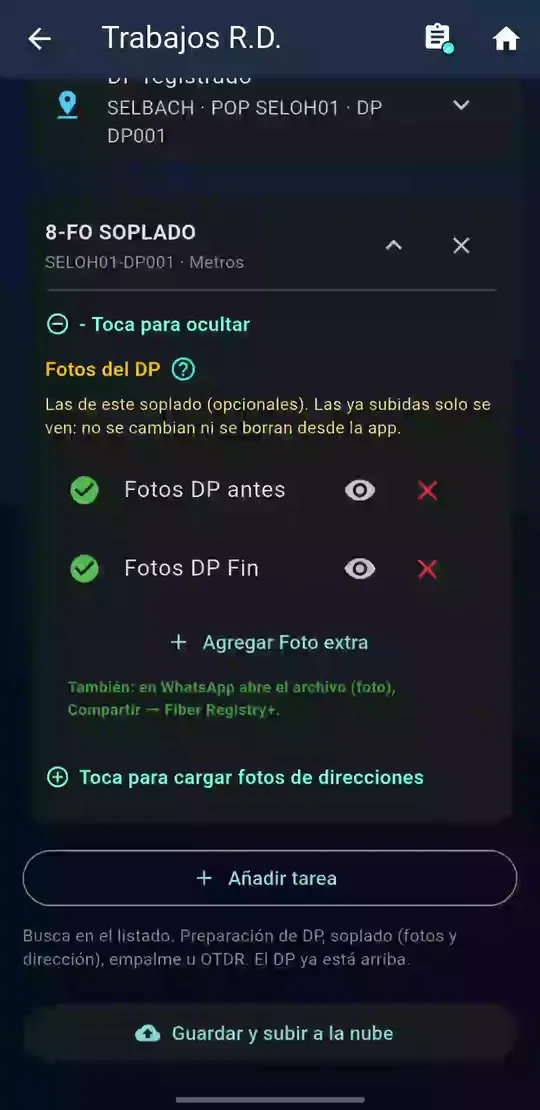
A DN DP from start to finish: the technician registers the DP under its POP and adds the cable blowing, with photos of the DP before and after and one address per customer: a photo of the façade (the camera reads the street and number), metres, trunk duct, DN duct and notes. Then the splicing, with one photo per tray (it reads each tray's code) and its splices. Once uploaded, it shows up in the recorded jobs and in the summary, address by address.

Watch the video
Editing a recorded task

Editing a recorded task

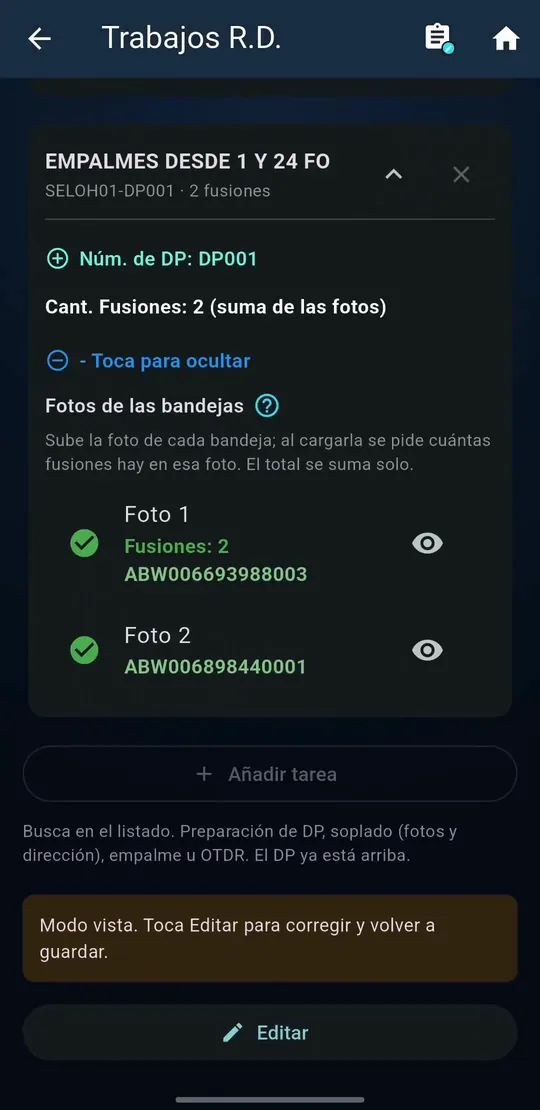
To fix something already uploaded: the technician opens the DP in the recorded jobs, taps the task and, in view mode, presses Edit. They change whatever is needed (here, the missing splices of a tray), save, and it is updated in the cloud; the total and the summary pick it up straight away.

Watch the video
Switching project, recording a CTO and editing it

Switching project, recording a CTO and editing it

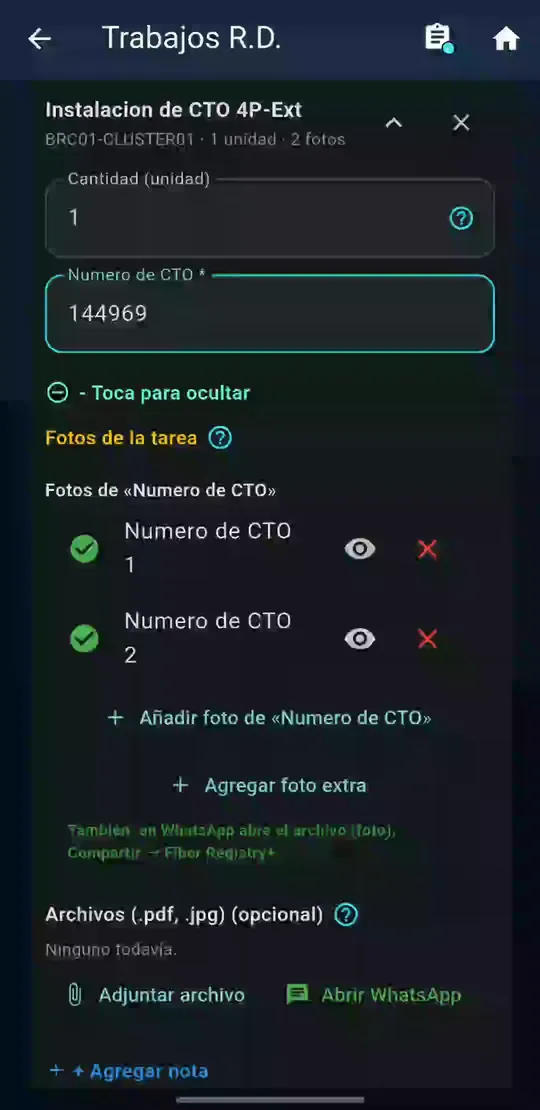
On the home screen, the technician switches project with one tap. Then they record a CTO in a DN DP: they search for the task, enter the CTO number and take two photos, which carry the address, GPS position and time. Once saved, it uploads to the cloud and shows up in the summary; from there they open the record, view its photos and can fix it with Edit.

Watch the video

Let's talk

Write to us and we will help you set up your first project.